
Printable Class Schedule — Blank or Colorful
A printable class schedule you actually build: days, week start, clock hours or numbered periods, and then a color palette, a font and a row height. Fill the cells in here on screen, or print it blank and fill it in with a pencil. Free, no sign-up, no watermark.
You can type straight into the cells, or leave them empty and fill them in with a pencil after printing. What you type is saved in your browser only.
Clicking a row label — the time or the period number — turns that row into a break.

Ready-made schedules to download: PDF and Word
No time to design one? Here are two ready weekly schedules, A4 landscape. Download, print and fill them in by hand, or open the Word file and type in your classes.
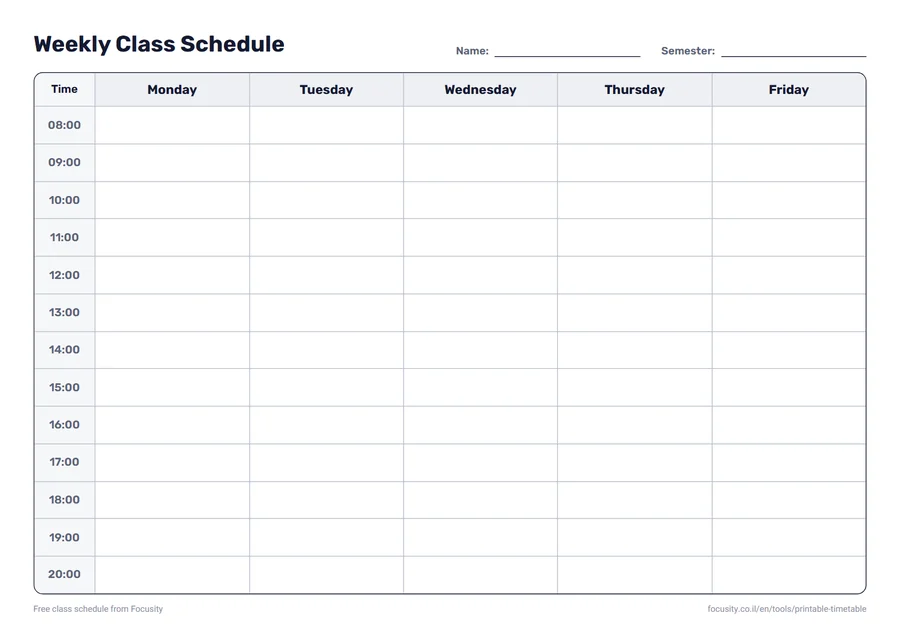
Blank weekly schedule, by hours
Monday to Friday, 08:00 to 20:00. Made for college students.
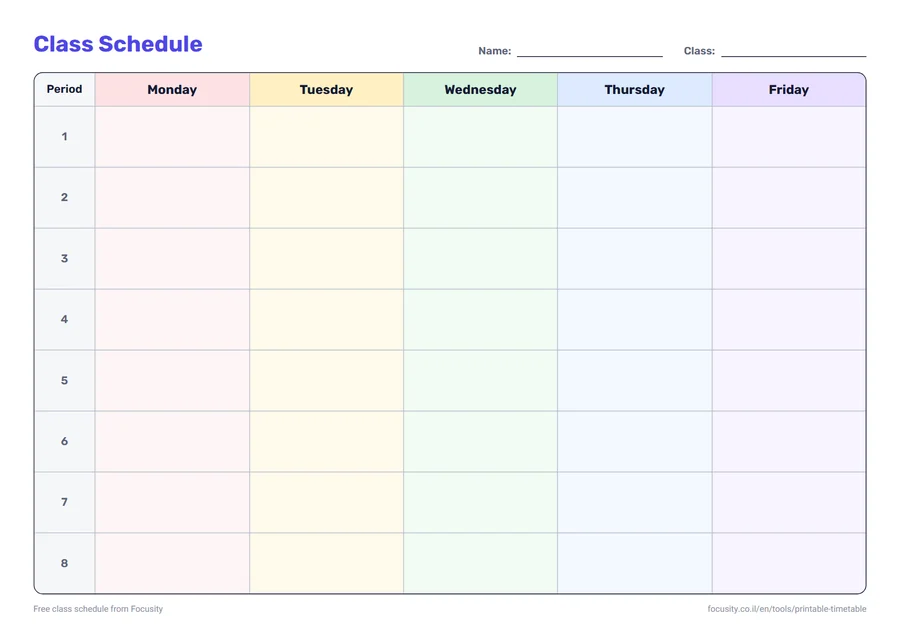
Need other days, hours or colors? Build exactly what you need with the tool above and save it as a PDF.
What you can style
Most of the pretty schedules floating around are fixed images: the design is nice, but the number of days, hours and periods was decided for you and cannot be touched. This works the other way round — build the structure that is actually right, then dress it.
- Eight color palettes. From Classic, plain black on white for anyone who wants a working sheet, through to Blossom and Sunset, which suit a schedule that is going above a child's desk.
- A separate color per day. Every column gets its own shade. In the early grades that is what lets a child find the right day before they can read it.
- Five fonts. Rounded is the friendly one, Classic is the formal serif, Geometric is the modern one, and Clean is the default. Clean and Bold also carry Hebrew, which matters if a course name on the sheet is not in English.
- Text size and row height. Roomy gives you real space to write inside a cell with a pencil; Tight squeezes a long day onto one page.
- Border style and corners. Full grid, light lines or rows only — plus zebra stripes, which are the difference between following the right row and reading the one above it.
- A name line and a notes column. The top line for anyone printing for a whole class, the notes column for homework or what to pack for tomorrow.
The colors really do come out of the printer. Browsers drop backgrounds when printing by default, which is why colorful schedules from other sites so often print white. This page explicitly asks the browser to print its colors, so you never have to hunt for the "background graphics" checkbox. If you'd rather save ink, there's a switch for that.
Print now, or save a PDF
Both buttons open the same dialog; the only difference is the destination. Print sends it to a printer. Save as PDF sends it to a file — a real Letter or A4 page with the colors, the font and whatever you filled in, without installing anything.
The file is genuinely useful in two situations: when you want to send the schedule to someone else, and when you want it printed at a copy shop or at work instead of on the printer at home. If you're printing here and now, the file buys you nothing — just print.
What to check before you hit print
Most schedules that come out wrong come out wrong because of two settings in the print dialog, not because of the table.
- Landscape. Five columns just about fit a portrait page; six or more do not. The page asks the browser for the orientation you picked, but some browsers ignore the request, so it is worth a look.
- Headers and footers. By default the browser adds the site address and the date to the margins. In the print dialog, under More settings, you can turn that off.
The one thing you do not need to touch is background graphics — the page handles that itself, and the row height is computed from the paper size and orientation you picked, so the schedule lands on one page instead of spilling onto a second.
Hours or periods — two different schedules
The rows can be labelled two ways, and the choice is not a matter of taste but of which kind of schedule you are building.
Hours mode labels every row with a clock range — 08:00–09:00, 09:00–10:00. That is the shape of a university timetable, where each course sits at a different time and there is no "third period" that means the same thing every day.
Periods mode numbers the rows — Period 1, Period 2 — without pinning a time. That is the shape of a school timetable, where the row is defined by the period number and breaks between periods are not always the same length. Clicking a row label turns it into a break, and the numbering skips it, so period 3 stays period 3.
For school, and for university
For school, use periods mode, five or six days, the name and class line, and usually a color per day. This is the sheet that ends up on a fridge or in a binder, and whoever reads it needs to find the day in a second. If it is for a whole class, print it blank — every child fills in different afternoon activities.
For university, use hours mode with 60- or 90-minute slots, a roomy row height and a quieter palette. An academic week fills up with more than lectures — labs, shifts, commutes — and you need room to write inside a cell rather than just tick it. If you are still assembling the term, read how to build a semester schedule first and run the course load calculator.
Blank or filled in?
Blank wins while the schedule is still moving. In the first two weeks of a term courses still shift, and a pencil corrects faster than a printer. The same goes for anyone working rotating shifts: a blank sheet refilled weekly beats one fixed page that is already wrong by week two.
Filled in wins once the skeleton is final. If classes are locked for the term there is no reason to write them out by hand again and again. There is a middle path that works well: type only the fixed things — classes, shifts, commutes — and leave the rest of the cells empty for study time, which moves anyway.
One note on printed schedules: they show when you are busy, not when you are supposed to study. That gap is what makes a tidy-looking schedule fall apart in week three, and we wrote about it at length in building a semester schedule.
Frequently asked questions
How do I save the schedule as a PDF?
Click Save as PDF, then pick Save as PDF as the destination in the print dialog that opens instead of a printer. You get a real Letter or A4 file with the colors and font you chose, without installing anything. That is also the way to send the schedule to someone else, or to have it printed at a copy shop later.
Do the colors actually print?
Yes. The page asks the browser to print its colors even if you never switch on background graphics in the print dialog, which is why colorful schedules from other sites so often come out white. If you would rather save ink, the ink-saver switch prints the same schedule in black and white and keeps the color on screen.
How do I print without the browser headers and footers?
In the print dialog open More settings and turn off Headers and footers. Without that the browser adds the site address and the date to the margins. While you are there, check that the layout is landscape — six or seven columns do not fit a portrait page.
Is what I typed saved?
Yes, in your browser only. What you typed in the cells, and your day, hour and design choices, are stored locally and come back the next time you open the page in the same browser. Nothing is sent anywhere and nothing is stored on our side, which also means it will not appear in another browser or on another device.
Can the week start on Sunday?
Yes — pick Sunday under “Week starts on”. The default is Monday, which most timetables outside the Middle East expect; a Sunday start fits Israel and other countries where the study week runs Sunday to Thursday.
Can each day have its own color?
Yes, the “Color per day” switch gives every column in the header its own shade. It is the version that helps younger children find the right day before they can read it, which is exactly why it is off by default for anyone who wants a plainer sheet.
How do I mark breaks and lunch?
Click the row label on the side — the time or the period number — and the row becomes a shaded break row. In periods mode the numbering skips it, so period 3 is still period 3 even with a break above it. Clicking again turns it back into a normal row.
What is the difference between hours mode and periods mode?
Hours mode labels each row with a clock range, for example 08:00–08:45, which suits a university timetable where every course sits at a different time. Periods mode numbers the rows — Period 1, Period 2 — which suits a school timetable, where the row is defined by the period number rather than by the clock. Same table, different labelling.
Should I print it blank or filled in?
Blank, if the schedule is not final yet or changes week to week — a pencil corrects faster than a printer. Filled in, if it is locked for the whole term and you want it on the wall without writing it out by hand. There is a middle path too: print the fixed classes and leave the rest of the cells empty for a pencil.
Is there a printable class schedule in Word?
Yes. This page has a ready weekly class schedule as a Word file, by hours from Monday to Friday. Open it in Word, type in your classes and print. If you want other colors, days or hours, build a schedule with the tool at the top of the page and save it as a PDF.
Where can I download a blank weekly schedule?
In the "Ready-made schedules to download" section on this page: a blank weekly schedule by hours, Monday to Friday, as a printable PDF or a Word file, and a colorful one by periods. They are free and need no sign-up.
Do I need to sign up or install anything?
No. No sign-up, no download, and no watermark on the sheet. Everything runs in the browser, including saving what you filled in, and what comes out of the printer is your schedule and nothing else.