
How to Get All Your Moodle Assignments Into Your Calendar, in One Click
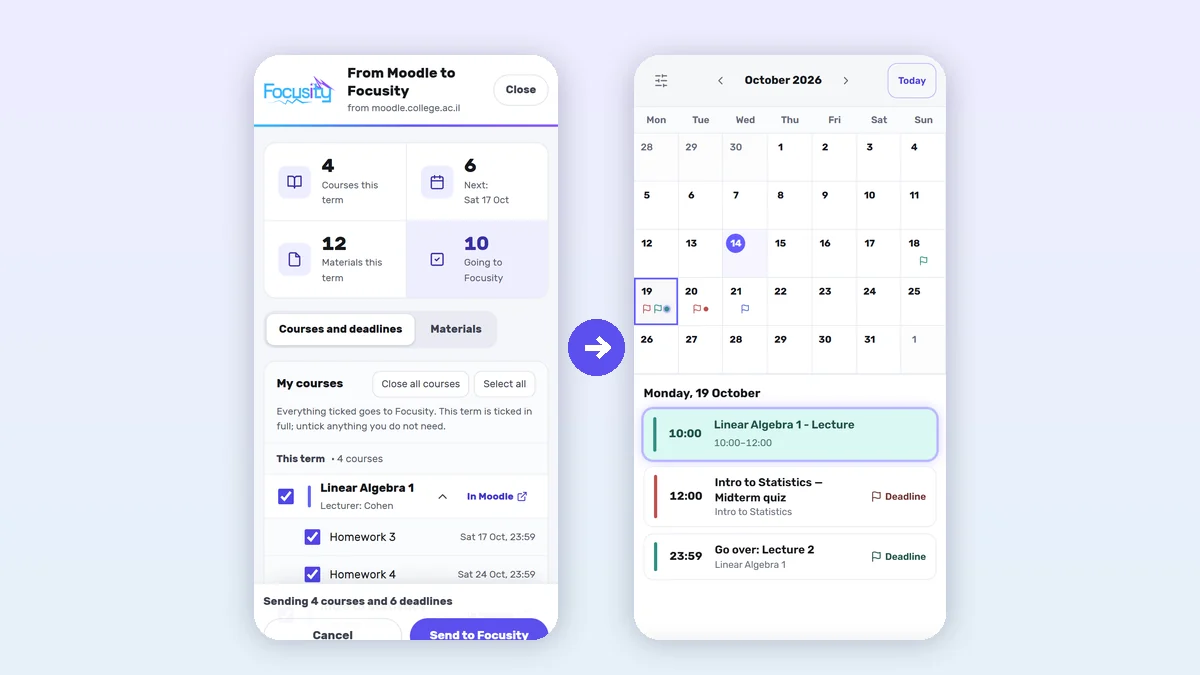
Moodle's Dashboard usually has a Timeline that lists deadlines across your courses, but it stays inside Moodle and doesn't put them in the calendar you actually use alongside your classes and free time. The Focusity button in Moodle fixes that in one click: it reads this term's courses, deadlines and course materials from Moodle and moves what you pick into your calendar, with the date and time each one is due.
Why Moodle assignments are hard to keep track of
A new assignment appears on the course page, sometimes in an announcement and sometimes only when you open the course. Moodle's calendar shows deadlines, but not the lectures, tutorials and recordings you need to go over. And getting the dates into another calendar means picking a time period and exporting: a file has to be downloaded again whenever something changes, and a sync link updates by itself but brings no course materials. That route has its own full guide to exporting your Moodle calendar.
What the button does
The button is a bookmark in your browser's bookmarks bar. Click it with Moodle open, and a window opens with two tabs:
- Courses and deadlines: this term's courses, each with its deadlines and quizzes. Everything starts ticked, and you untick what you don't need.
- Materials: each course's files, recordings and links, week by week. Tick one and it becomes a study task, like "Go over: Lecture 3", with the Moodle link.
Click "Send to Focusity", a Focusity tab opens with a list of everything you picked, and nothing is saved until you click "Add to my calendar" there. From then on, anything new in Moodle is marked "new" in the window.
Set it up in three steps, once
- On a computer, open the Moodle button page in Focusity.
- Drag the button to your bookmarks bar. If the bar is hidden, Ctrl+Shift+B (⌘+Shift+B on a Mac) shows it in Chrome and Edge.
- Open your institution's Moodle and click the button in the bar.
From then on it is one click whenever you want to update. If dragging does not work, the setup page also lets you copy the code into a new bookmark.
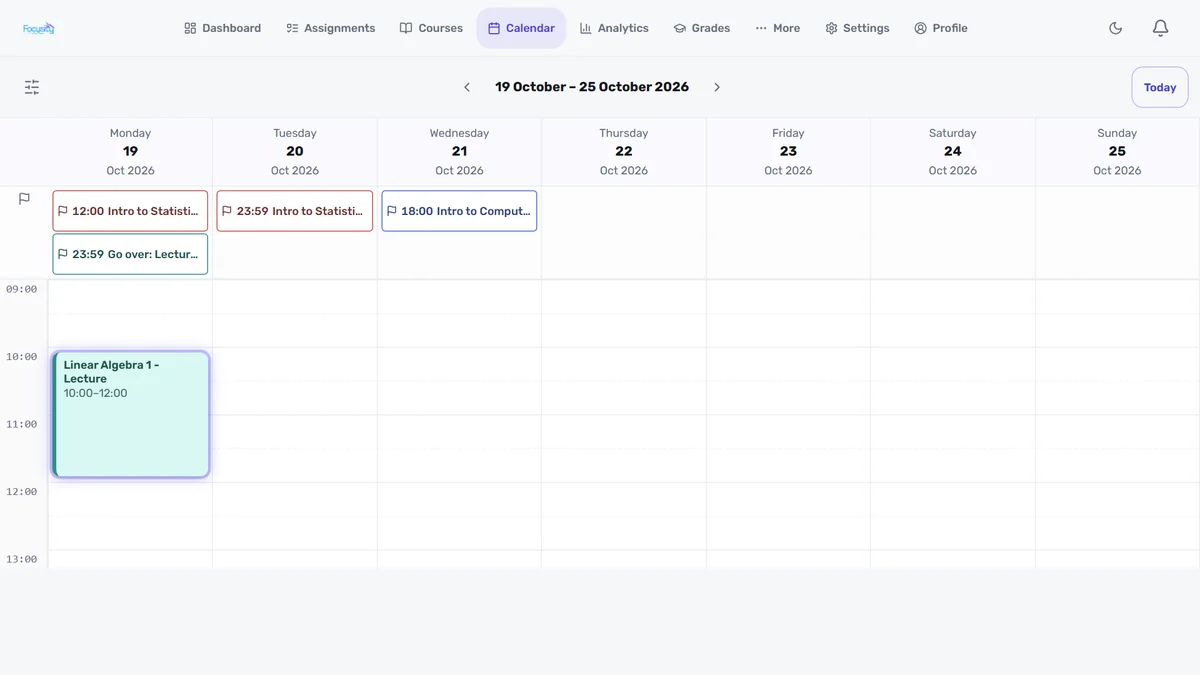
What you see in the calendar afterwards
Every deadline shows on its day in the calendar with its time, like "23:59 Homework 3", in the course's colour. Click it to see the full date and time and the course, and a deadline that has passed is marked in red. The assignments also show in your task list and on the dashboard, and once you mark one done it leaves the calendar.
What does not come over, and why
- Grades. The grade Moodle shows for a course is not necessarily your official grade. How it is calculated depends on the course's grade settings, and at Levinsky, a college in Israel, for example, the lecturer has to transfer the grade to the information system, and exam grades are entered there. Brought into your average, Moodle's figure could make the average wrong.
- Your timetable. Weekly lectures and tutorials are usually not in Moodle. They come from your institution's student portal, and there is a guide to building a semester timetable.
- Your password. The button uses the Moodle sign-in already open in your browser, and only reads. It changes nothing in Moodle.
The button or the calendar sync?
There are two ways to bring Moodle assignments into Focusity, and you can use both:
- The button also brings course materials and lecturers' names, and shows you everything before anything is saved. You update with a click when you are in Moodle.
- The calendar sync keeps deadlines up to date by itself, without opening Moodle, but brings mostly deadlines and calendar events, with no course materials.
Both recognise each assignment by the same number Moodle gives it, so an assignment that arrives both ways is saved once. Clicking the button again does not create duplicates either.

The button is free and works in a browser on a computer. What you send also shows in the app on your phone, on iPhone and Android.
Set up the buttonFrequently asked questions
How do I get my Moodle assignments into my calendar?
The quickest way is the Focusity button in Moodle: drag it to your bookmarks bar once, open Moodle and click it. It shows this term's courses, deadlines and course materials, and what you pick goes into your calendar with each due date and time. Another way is exporting your Moodle calendar as a file or a sync link.
Does the button need my Moodle password?
No. The button uses the Moodle sign-in already open in your browser, and only reads. It stores no password and changes nothing in Moodle.
Does it work on my phone?
The button itself works in a browser on a computer, because a phone has no bookmarks bar to click inside Moodle. What you send from the computer then shows in the app on your phone too.
How is the button different from exporting the Moodle calendar?
The button also brings course materials and lecturers' names, and shows you everything before anything is saved. Exporting the calendar brings mostly deadlines and calendar events, with no course materials, but connected as a sync it updates by itself. You can use both without duplicates.
Why don't my Moodle grades come over?
Because the grade Moodle shows for a course is not necessarily your official grade: how it is calculated depends on the course's grade settings, and at some institutions the final grade is recorded in a separate system. Counted in your average, it could make the average wrong.
What happens if I click the button twice?
Nothing is doubled. Each assignment is recognised by the number Moodle gives it, and what is already in your calendar is not added again.
Every deadline of the term, in one place
Focusity builds a weekly study plan inside your free time, around your timetable, deadlines and exams. Free, on iPhone, Android and the web.
Build my plan — free